


Dentrix Windows 10 Support Ending: 2026 Upgrade Guide for Dental Practices
Dentrix support for Windows 10 environments is ending in 2026. Learn what dental practices should do now to audit workstations, plan Windows 11 upgrades, reduce cybersecurity risk, and prepare for HIPAA-conscious Dentrix support.
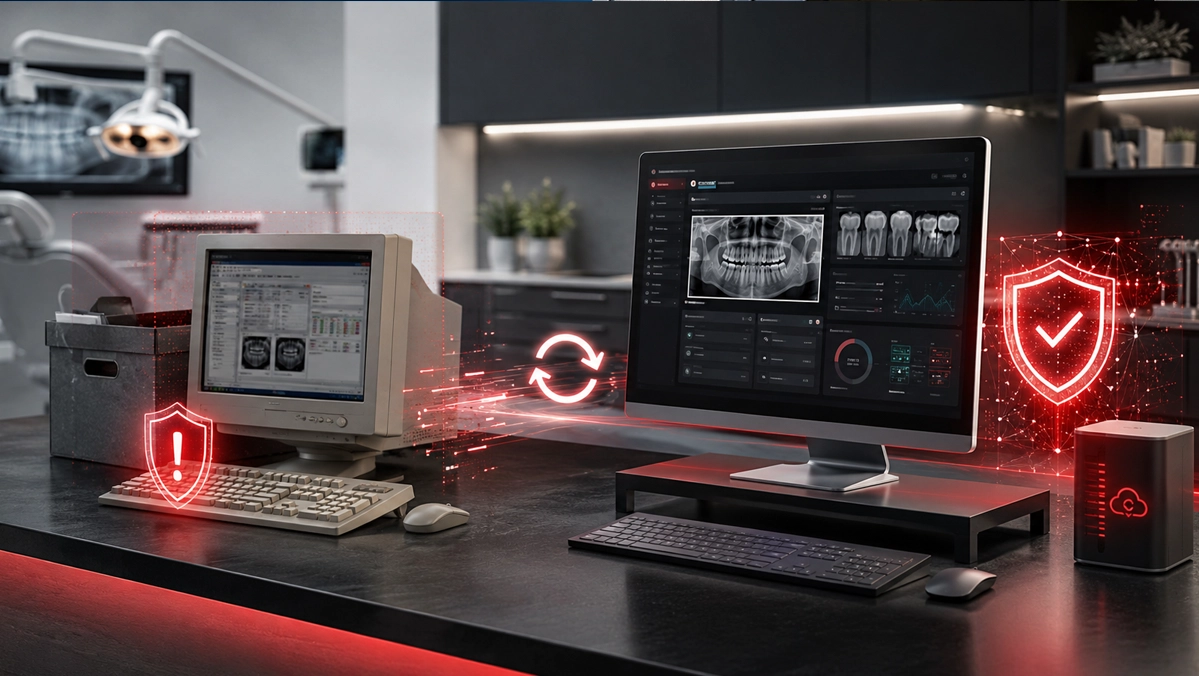
Dental practices running Dentrix on Windows 10 should treat the 2026 support cutoff as an urgent technology planning issue. Windows 10 has already reached end of support from Microsoft, and Dentrix support for Windows 10 environments is being phased out in 2026. For dental offices, this is not only a software compatibility issue. It affects cybersecurity, HIPAA-conscious safeguards, downtime risk, workstation replacement planning, and the ability to keep patient care moving without last-minute disruption.
Key Takeaways
Dentrix practices still using Windows 10 should audit every workstation and server before the 2026 support cutoff creates avoidable disruption.
Windows 10 has reached end of support from Microsoft, which increases cybersecurity and compliance risk for systems that access electronic protected health information.
The safest plan is to identify which computers can move to Windows 11, replace hardware that cannot, and prepare Dentrix workstation settings before migration.
Why Dentrix practices should act now
Dentrix is central to many dental offices. It supports scheduling, charting, billing, treatment workflows, patient records, insurance tasks, and daily front desk operations. When the Dentrix environment is not supported, the risk is bigger than an annoying software message. A workstation failure, failed reinstall, or unsupported upgrade path can interrupt the entire practice day.
The concern is especially serious for offices still running Windows 10. Microsoft has ended standard support for Windows 10, which means those computers no longer receive the same ongoing operating system security support as a modern, supported Windows environment.
For a dental practice, old workstations are not just old computers. They are systems that may access patient information, imaging tools, practice management data, payment workflows, and other sensitive systems. That makes unsupported operating systems a cybersecurity and compliance planning issue.
Waiting until a workstation fails is the expensive way to handle this transition. The better approach is to audit the environment now, decide which devices can be upgraded, replace the ones that cannot, and schedule the project before it becomes an emergency.
What the Dentrix Windows 10 cutoff means
The practical impact is simple: Dentrix practices should not plan to keep Windows 10 workstations as part of their long-term supported environment. Once the cutoff is reached, support options may become limited, and reinstalling or supporting Dentrix on Windows 10 may no longer be available in the same way it was before.
That matters after hardware failures. If an old Windows 10 workstation crashes, has drive failure, or needs to be replaced quickly, the practice may discover that simply reinstalling Dentrix on the same unsupported setup is no longer a dependable path.
It also matters for updates and vendor support. Dental software vendors typically expect practices to stay within supported operating system and hardware requirements. When the operating system falls outside that supported configuration, support calls can become more difficult and resolution times can increase.
The safest assumption is that every Dentrix workstation should be reviewed for Windows 11 readiness before the deadline, not after a problem appears.
Why this is a cybersecurity and HIPAA-conscious planning issue
Dental practices handle electronic protected health information every day. That includes patient records, treatment notes, billing information, insurance data, digital images, and other sensitive practice data. Systems that access that information should be maintained, monitored, protected, and supported.
Unsupported operating systems create a documented security concern because they are less able to receive normal security fixes over time. As new vulnerabilities are discovered, unsupported devices become harder to defend and harder to justify during a security review.
HIPAA does not provide a simple checklist that says one specific operating system is always compliant or non-compliant. The real issue is whether the practice has reasonable and appropriate safeguards for the risks in its environment.
Running practice management software on an unsupported operating system makes that risk harder to defend. It can affect access control, audit readiness, endpoint protection, patch management, backup planning, and the practice’s ability to show that known technology risks are being addressed.
Step 1: Audit every workstation in the practice
Start with a complete device inventory. Every front desk computer, operatory workstation, consultation room computer, imaging workstation, billing workstation, office laptop, and administrative device should be reviewed.
For each device, document the computer name, user or room, operating system version, processor, memory, storage type, age, Dentrix usage, imaging software usage, and whether the device connects to scanners, sensors, printers, label printers, signature pads, or other peripherals.
This audit should also include the server or hosting environment if the practice runs Dentrix from an on-site server. Workstation upgrades alone may not solve the problem if the broader environment is also aging or unsupported.
The goal is to separate devices into three groups: ready for Windows 11, possibly upgradeable with hardware improvements, and replacement required.
Step 2: Check Windows 11 compatibility
Some computers purchased within the last several years may be eligible for an in-place Windows 11 upgrade. Others may fail compatibility checks because of processor generation, TPM requirements, storage limitations, memory limitations, or age.
A compatibility review should not stop at whether Windows 11 can technically install. The workstation also needs to perform well during real dental workflows. Dentrix, imaging software, browser-based tools, security software, printing, scanning, and patient communication tools may all run at the same time during a busy day.
For many practices, 16 GB of RAM and solid-state storage should be considered the practical baseline for a smoother workstation experience, especially when imaging software or multiple applications are used together.
A device that barely qualifies for Windows 11 may still be a poor long-term choice for a clinical or front desk workstation. The upgrade plan should consider reliability and productivity, not just minimum requirements.
Step 3: Upgrade or replace before the deadline
Once the audit is complete, create a replacement plan. Do not wait until every workstation has a problem. Replacing devices in phases can reduce downtime, spread project cost, and give the team time to test Dentrix workflows before the cutoff.
Workstations that can be upgraded should be backed up, reviewed, patched, and scheduled for Windows 11 migration. Workstations that cannot be upgraded should be replaced with business-class computers that meet current Dentrix, security, and performance needs.
For clinical rooms, the plan should account for connected dental equipment. Imaging sensors, intraoral cameras, scanners, printers, and other devices may need driver checks or vendor coordination before a workstation is replaced.
The best migration plan avoids surprises. Each workstation should be validated after upgrade or replacement so the team knows Dentrix launches, users can sign in, printers work, imaging access is functional, and daily workflows are ready before patients are in the chair.
Step 4: Prepare for Dentrix re-customization
Moving Dentrix to a new workstation is not always as simple as installing the software and signing in. Local settings, workstation preferences, printers, imaging paths, integrations, shortcuts, mapped drives, and user-specific workflows may need to be reconfigured.
That is why the audit should document how each workstation is used. A front desk computer may need different printers, payment tools, scanning tools, and scheduling workflows than an operatory computer. A billing workstation may have different claim, reporting, and document workflows.
Before replacing a computer, your IT support team should confirm what needs to be preserved or recreated. That includes Dentrix workstation settings, imaging integrations, device drivers, browser bookmarks, saved shortcuts, security tools, remote support tools, and access permissions.
A clean migration checklist helps reduce post-upgrade frustration. The goal is not only to install Windows 11. The goal is to return each team member to a familiar, working dental workflow with as little disruption as possible.
Step 5: Review the local network and server environment
Dentrix performance depends on more than the workstation. A slow network, aging server, weak switch, poor cabling, unstable Wi-Fi, or overloaded security software can make Dentrix feel slow even after computers are replaced.
Before a full upgrade, practices should review the server, backups, switches, firewall, cabling, wireless setup, endpoint protection, and remote access configuration. This is especially important for multi-operatory practices and offices with large imaging databases.
Backups should be verified before any major workstation or server project. A practice should know what is backed up, how often backups run, whether backups are monitored, and how quickly critical systems can be restored after a failure.
This is also a good time to review cybersecurity basics such as unique user accounts, multi-factor authentication where available, endpoint detection, least-privilege access, secure remote access, and removal of old user accounts.
A practical Dentrix upgrade checklist
Create a complete inventory of every workstation, server, laptop, and device that touches Dentrix or patient data.
Identify which computers are still running Windows 10 and which ones can support Windows 11.
Replace computers that do not meet Windows 11 and Dentrix performance expectations.
Document Dentrix workstation settings, printers, imaging integrations, mapped drives, and user workflows before migration.
Verify backups before making changes to workstations or servers.
Schedule upgrades during low-impact windows so patient care and front desk workflows are not disrupted.
Test Dentrix, imaging, printing, scanning, claims workflows, and user access after each upgrade.
Review cybersecurity controls after the project so the new environment is not only supported, but better protected.
How Dental IT helps South Florida practices prepare
Dental IT helps dental practices plan workstation upgrades, Dentrix environment reviews, Windows 11 migrations, cybersecurity improvements, and HIPAA-conscious technology planning.
Our team can help identify which computers need replacement, coordinate workstation setup, review network performance, confirm backup readiness, and reduce the risk of last-minute downtime during the Dentrix support transition.
For practices in Miami-Dade, Broward, Palm Beach, Monroe, and surrounding South Florida areas, this is the right time to build a clear upgrade plan instead of reacting after a workstation fails.
A supported Dentrix environment should be stable, documented, secure, and ready for daily patient care. The sooner your practice starts, the easier it is to avoid rushed purchases, scheduling stress, and preventable disruption.
Common Questions
Frequently asked questions
Does Dentrix still support Windows 10?
Dentrix support for Windows 10 environments is being phased out in 2026. Dental practices should plan to move Dentrix workstations to Windows 11 before the cutoff to avoid unsupported configurations.
Is Windows 10 a HIPAA risk for dental practices?
Windows 10 has reached end of support from Microsoft. For dental practices, continuing to use unsupported systems that access ePHI can create a cybersecurity and compliance risk that should be reviewed and addressed.
Can every Windows 10 dental workstation be upgraded to Windows 11?
No. Some workstations may meet Windows 11 requirements, while older computers may need to be replaced because of processor, TPM, memory, storage, or performance limitations.
Will Dentrix settings transfer automatically to a new workstation?
Not always. Dentrix workstation settings, printers, imaging integrations, mapped drives, shortcuts, and local preferences may need to be documented and reconfigured by IT support during migration.
When should dental practices start planning the Dentrix Windows 11 upgrade?
Practices should start as soon as possible. Inventory, hardware ordering, scheduling, backup checks, workstation replacement, testing, and vendor coordination all take time.